> ## Documentation Index
> Fetch the complete documentation index at: https://api.aodocs.com/llms.txt
> Use this file to discover all available pages before exploring further.
# Before creating AODocs documents: Create test Drive folder and files
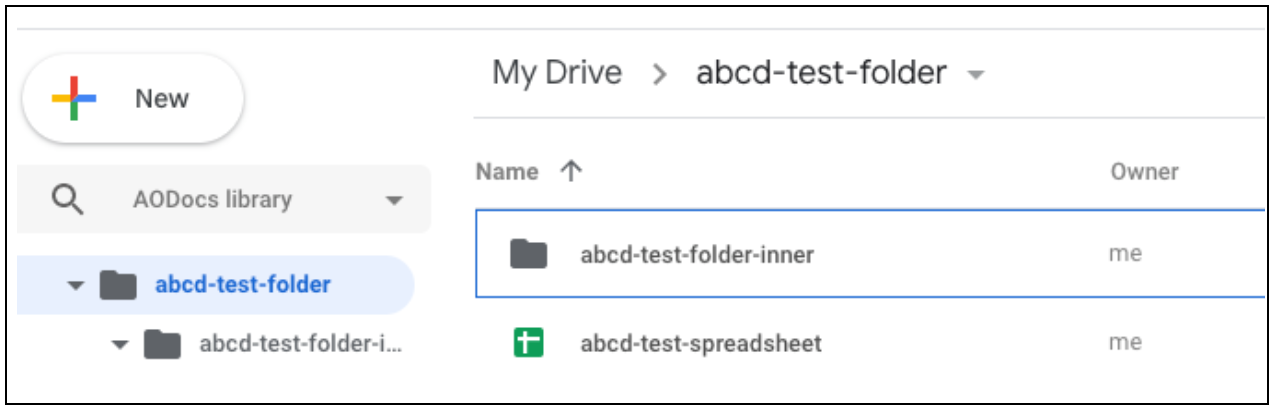
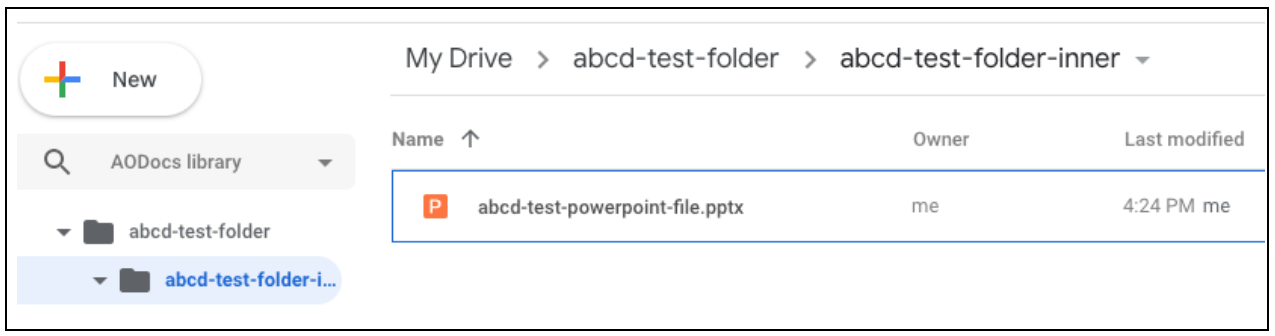
> In order to have some test files and folders to work with, open up your [Google Drive](https://drive.google.com/) and create a Drive folder. Upload or create some files beside it as well as inside it.
Here’s an example of what that might look like:
 ## Folder ID
In Drive, files and folders are identified by their individual IDs. When the URL says something like `/drive/folders/**1HczxnMexotWE3H9z8aebZepvkla60UEzz**`, the long string of numbers and letters refers to the current Drive **folder ID**:
## Folder ID
In Drive, files and folders are identified by their individual IDs. When the URL says something like `/drive/folders/**1HczxnMexotWE3H9z8aebZepvkla60UEzz**`, the long string of numbers and letters refers to the current Drive **folder ID**:
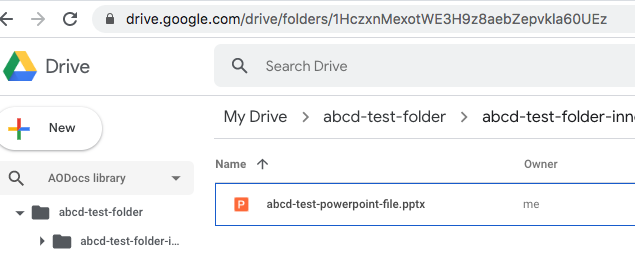
 Make note of the **Drive folder ID** in the URL for later.
## File ID
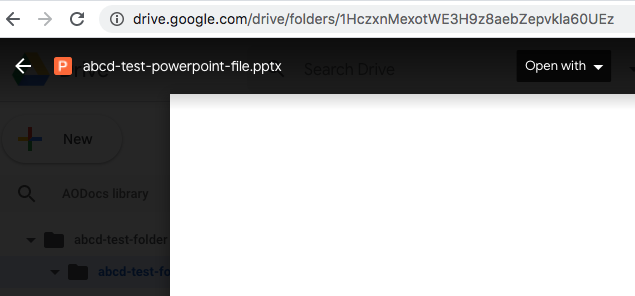
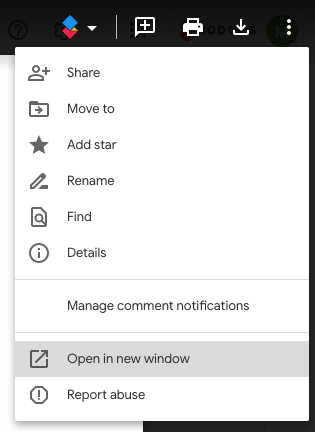
To get the URL to display the **file** ID of the **file** that’s currently open, click on the More options" menu (**⁝**), then on “Open in new window”:
Make note of the **Drive folder ID** in the URL for later.
## File ID
To get the URL to display the **file** ID of the **file** that’s currently open, click on the More options" menu (**⁝**), then on “Open in new window”:
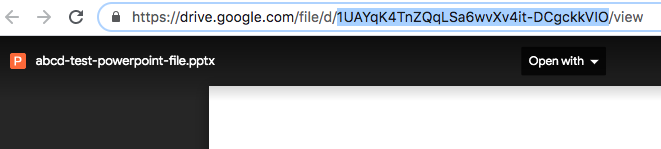
 Now the URL lists the Drive **file** ID (as opposed to **folder** ID):
 **Note**:
Certain Drive files such as Google Forms require an additional step of clicking on `Edit` (pencil icon usually in the bottom right of the page) and open the file in yet another view. Only then does the URL display the proper file ID.
Make note of the **Drive file ID**: it and the **AODocs document ID** are the two most critical and commonly used pieces of identifying information in the **AODocs API**.
**Note**:
If you’re familiar with the Drive API, the file ID is the ID of the [File](https://developers.google.com/drive/api/v3/reference/files/get) resource.
## Next steps
Use a Drive file to [create a new AODocs document with an attachment](/manage-aodocs-documents/create-modify-delete-documents/create-new-documents-with-attachments/create-new-document-and-attach-drive-file/).
**Note**:
Certain Drive files such as Google Forms require an additional step of clicking on `Edit` (pencil icon usually in the bottom right of the page) and open the file in yet another view. Only then does the URL display the proper file ID.
Make note of the **Drive file ID**: it and the **AODocs document ID** are the two most critical and commonly used pieces of identifying information in the **AODocs API**.
**Note**:
If you’re familiar with the Drive API, the file ID is the ID of the [File](https://developers.google.com/drive/api/v3/reference/files/get) resource.
## Next steps
Use a Drive file to [create a new AODocs document with an attachment](/manage-aodocs-documents/create-modify-delete-documents/create-new-documents-with-attachments/create-new-document-and-attach-drive-file/).